Views
Fileclass delegates querying and display to the core Bases plugin — it does
not ship its own table engine. To see and browse the notes of a fileClass, you
use a .base file; Fileclass helps you create one.
Generating a base
Watch: A table for a class, generated Fileclass #032 · 2:36 · recorded with 0.2.10 · on YouTubeRun Fileclass: create a base for a class, or right-click a fileClass note → Create a base for this fileClass. A small dialog lets you choose:
- the base file path (new or existing; defaults to
<basesFolder>/<FileClass>.base, the folder set in Settings → Fileclass → Bases folder), and - the view name — the managed view (defaults to the fileClass name).
It creates the base — with an editable fileclass-table view (see below)
listing file.name and the fields — and records the choices on the fileClass
(baseFile/baseView). Pointing at an existing base is safe: only the
managed view is added or updated — your other views are left untouched.
One view, one class. If another fileClass already mirrors into that file and view name, the setup says which and stops: two classes writing the same view would overwrite each other’s columns on every sync. Give the second one a view name of its own — the same base can hold both.
What the managed view filters on
The filter matches every way a note can be bound to the class, not just the frontmatter property:
fileClass.containsAny("Author")— the note names the class (whatever your fileClass alias is).containsAny, not==: a note may carry several classes, and the property is then a list, which no equality test matches — it was dropping those notes from the table of a class they belong to. A base generated before this is still recognised as ours, so the next sync rewrites the clause;file.inFolder("Authors")— one clause per Files paths folder.inFolderrather than an equality on the folder, because binding is by prefix: a note inAuthors/Deep/is bound too;file.hasTag("author")— one clause per tag name, and the class name itself when Map with tag is on.
With more than one of those, they are or-ed inside the view’s filter group, which
is where a dependent field
adds its own predicate. A class bound only by folder or tag leaves no property
on its notes at all: filtering on the property alone returned an empty view, which
is what a generated base used to do for every folder-mapped class.
Two bindings have no Bases equivalent and are therefore outside the filter: bookmark groups, and a class named by a Base view. Notes bound only that way won’t appear in the generated view — add a clause of your own, and sync will leave it alone.
A base generated before its class gained a folder or a tag is repaired on the next sync, but only when its filter is still exactly what Fileclass wrote. Edit that filter yourself and it becomes yours: sync then never touches it.
The fileClass filter is written on the managed view (Bases’ “This view”
scope), not base-wide. So you can add a second view for another fileClass to
the same base — e.g. a bookAuthor view inside your book base — and it shows
its own notes instead of being shadowed by a base-wide fileClass == "book"
filter. Each view carries its own filter and is free to scope itself.
Existing generated bases created before this change keep their base-wide filter — nothing is rewritten silently. To get the per-view behavior there, move the filter from “All views” to “This view” once in the Bases editor, or regenerate the base. Sync never moves it for you and never pushes a per-view scope back to base-wide.
Once a base exists, the right-click menu on the fileClass note changes:
- Modify base for this fileClass — reopens the same dialog (create/sync) on the existing base.
- Open base for this fileClass — opens the
.basein a new tab. There’s also the command Fileclass: open this class’s base.
Keeping a base in sync
Watch: Schema changed? the base follows Fileclass #033 · 2:34 · recorded with 0.2.10 · on YouTubeThe class note’s Properties panel says when a sync is due: its base button reads Sync the base while the managed view no longer mirrors the class, and syncs in one click. Nothing happens on its own — a base one field behind is a normal state between a schema change and the moment you decide to carry it over.
A fileClass can mirror its fields into a base — one-way and explicit, so your base is never rewritten behind your back. In the schema editor → Options, the Sync to base group has:
- Base file — the
.baseto mirror into (the generate command fills it in). - View name — the managed view inside that base (defaults to the fileClass name). Only this view is owned by Fileclass; every other view, filter, and sort in the base is yours and is never touched.
- Base structure — a status button:
- Synced (disabled) — the managed view matches the fileClass’s fields.
- Sync (active) — the base diverged (you edited it, or the fileClass
changed). Click to re-apply the mirror (
file.name+ the current fields).
Nothing is written automatically: when the fileClass or the base changes, the status simply flips to Sync and waits for you. If the declared base doesn’t exist, Sync creates it. There’s also a command, Fileclass: sync this class to its base.
If the base is open in a tab when you sync, its layout may not be on disk yet (Bases keeps it in memory until the tab closes). Sync detects this and offers to close the tab first so its state is flushed before mirroring — otherwise the sync would read an empty file and do nothing.
The sync round-trips the YAML, which reformats the file and drops YAML comments — fine for the plugin-managed base.
Editable table view
Watch: Editing right in the table Fileclass #034 · 2:44 · recorded with 0.2.10 · on YouTubeFileclass registers a Bases view type, fileclass-table, that renders like a
table but lets you edit cells in place: clicking a note.<field> cell performs
that type’s gesture — a Cycle advances, a
Boolean flips, everything else opens the field’s typed input (the same one used
everywhere). Alt-click always opens the input. file.* and formula.* cells
stay read-only.
Every fileclass-table gets the wrench and the New Class button, not only the
one a class declares as its own. A vault usually keeps several tables of one class — a
Todo, an Ongoing, a Done, each with its own filter — and the class is read from
whichever of these says it first: the class that declared the view (baseFile +
baseView), then the classes the filter names, then the classes of the rows. The
filter is what makes an empty view work, and a view whose rows carry two classes: it
is there in both cases, where the rows are not.
A table about several classes keeps both buttons. A filter naming more than one —
fileClass.containsAny("Book", "Comic"), or an or of two clauses — cannot say which
class you mean, so the buttons read Manage fileClass and New note and each asks
once: Which fileClass?, offering only this table’s own classes. A missing button is a
dead end; a question is a click.
If that view is a declared relation, the New button names it anyway: New with
<note>. What it will create is unknown, what the note will point at is not — and
the class is asked for on click, so the link follows it. A class of the table that
does not read this view backwards simply makes an ordinary note, which is what the
tooltip says rather than promising the link.
In the view switcher it carries an icon of its own — a table with a small gear, where the native table is a bare grid — so a base holding both says which is which without being opened.
Generated bases use it by default. In any other base, set a view’s type to
fileclass-table to get the same editing (the managed view keeps working with
the sync — its type is preserved). It requires the core Bases plugin; with Bases
disabled the view type is simply unavailable (switch the view back to table).
The table follows the notes it shows: edit a value in the note, or from its Properties panel, and the cell changes with it — one set of data, two windows onto it.
Links in cells behave like links anywhere: click to open, and hover for the page preview (with Ctrl/Cmd held, if that is how you have the Page preview plugin set up).
Columns you added stay where you put them. A sync brings the field columns back to
the class’s order — that is what it is for — and does not touch the others: every
formula.* and file.* column keeps its position, so a formula sitting third stays
third and file.name stays wherever you moved it. Only the slots holding fields are
refilled, fields the view had no room for are appended, and a second sync moves nothing.
A bare column over a property no class declares is still removed, because nothing can tell it apart from the leftover of a field the class used to have — which is also what makes removing a field from a class remove its column.
It renders all rows (no virtualization yet), so very large bases are better viewed with a native
tableview.
A new note from the table
The toolbar’s New creates a note that already carries the class, with its
fields inserted empty, and the row appears at once — Bases applies the view’s
filter to what it creates, and the class it names is what a fileClass line
would have said. The note opens in a popover whose Properties panel carries this
plugin’s controls like any other, so the row can
be filled in without leaving the table.
Grouping the rows
The Sort menu’s Group by applies here as it does to a native table: the rows arrive already grouped and ordered — Bases computes that from the view, not the plugin — and each run gets a heading naming the property and the value.
Notes where the property is empty group under None, at the end, which is the quickest way to see what a class is missing. The cells stay editable inside a group, so filling one in moves its row to the group it now belongs to.
The class’s schema, from the table
A table is where a schema shows its consequences — a column too many, a type that
reads wrong in every row. The base’s own toolbar therefore carries a wrench:
Manage <FileClass>, opening that class’s schema editor.
The class is the one that declared the view (baseFile / baseView on the
class note), so Books.base › Book is Book’s table even when a row is both a
Book and an Article. On a fileclass-table view nobody claims — one you set up
by hand — it falls back to the classes of the rows: one and the button names it,
several and it asks which. It appears only on an editable view; switch to a
native one and it goes.
Validation columns
Watch: What's missing, in a column Fileclass #035 · 2:30 · recorded with 0.2.10 · on YouTubeThe fileclass-table view can prepend a valid column and append an
errors column, turning the table into a live data-quality dashboard:
validshows ✓ when every one of the note’s fields satisfies its schema, or ✗ when at least one does not (missing required fields, out-of-range numbers, values outside aSelect’s allowed list, malformed dates, …).errorslists the messages for the failing fields (full text on hover).
One value, written without a list
A note that carries a single value often writes it as a scalar — themes: Ecology
rather than themes: [Ecology]. Metadata Menu wrote it that way, so a migrated vault
is full of them.
For a list of values (Multi, MultiInput) that is not flagged: measured on Bases,
contains, containsAny and == match the scalar exactly as they match a list of one,
so nothing that queries your vault can tell the two apart.
For a list of links (MultiFile, MultiMedia) it is, because there the difference
is visible: a scalar link is a link, and a link does not answer a membership test.
contributors.contains(this.file.asLink()) — the filter a
reverse-relation view is built from — returns the notes
whose value is a list and silently skips the others. The note then disappears from the
very table meant to list it, which is why the message names the consequence:
“contributors” is a single link, not a list — views filtering on it skip this note
Editing the field from the note-fields modal or the Properties buttons writes it back as a list.
Validation covers all of the note’s root fields, not just the columns shown.
Toggle it under Settings → Fileclass → Validation columns (on by default).
The same checks back fileclass validate on the CLI and the API’s
validate().
It also covers every note the class claims, which a filter of your own cannot
do without repeating the bindings: a view filtered on author.isEmpty() and the
class property finds the notes that name the class, while the column flags the
folder-bound ones too. That is the difference between asking a query and asking
the class.
Only the rows that need attention
Click the valid header to see just those, click again for the ones with
nothing to fix, once more for everything. The header carries the count of
failures as it goes (valid 2✗), so you know whether it is worth looking before
you look.
It is the column that filters, not a Bases filter (#142): Bases lets a plugin register a view and nothing else, so validity is not a property its own Sort and Filter menus can see. Restating the check as a base formula was the alternative and it was rejected — allowed values are resolved through queries, so the formula would answer a slightly different question and the two would drift. The choice lasts for the session; nothing is written to your base.
The schema canvas
Watch: The model your classes make Fileclass #039 · 2:35 · recorded with 0.2.11 · on YouTubeA vault’s fileClasses form a model — what inherits from what, which fields draw
their values from a .base, which are fed by a .canvas, and which folders, tags
and bookmark groups each class claims. That model lives in frontmatter spread over
the class notes, which is to say it lives in your head.
Fileclass: draw the schema canvas puts it on a canvas — also on the right-click menu of your class folder.
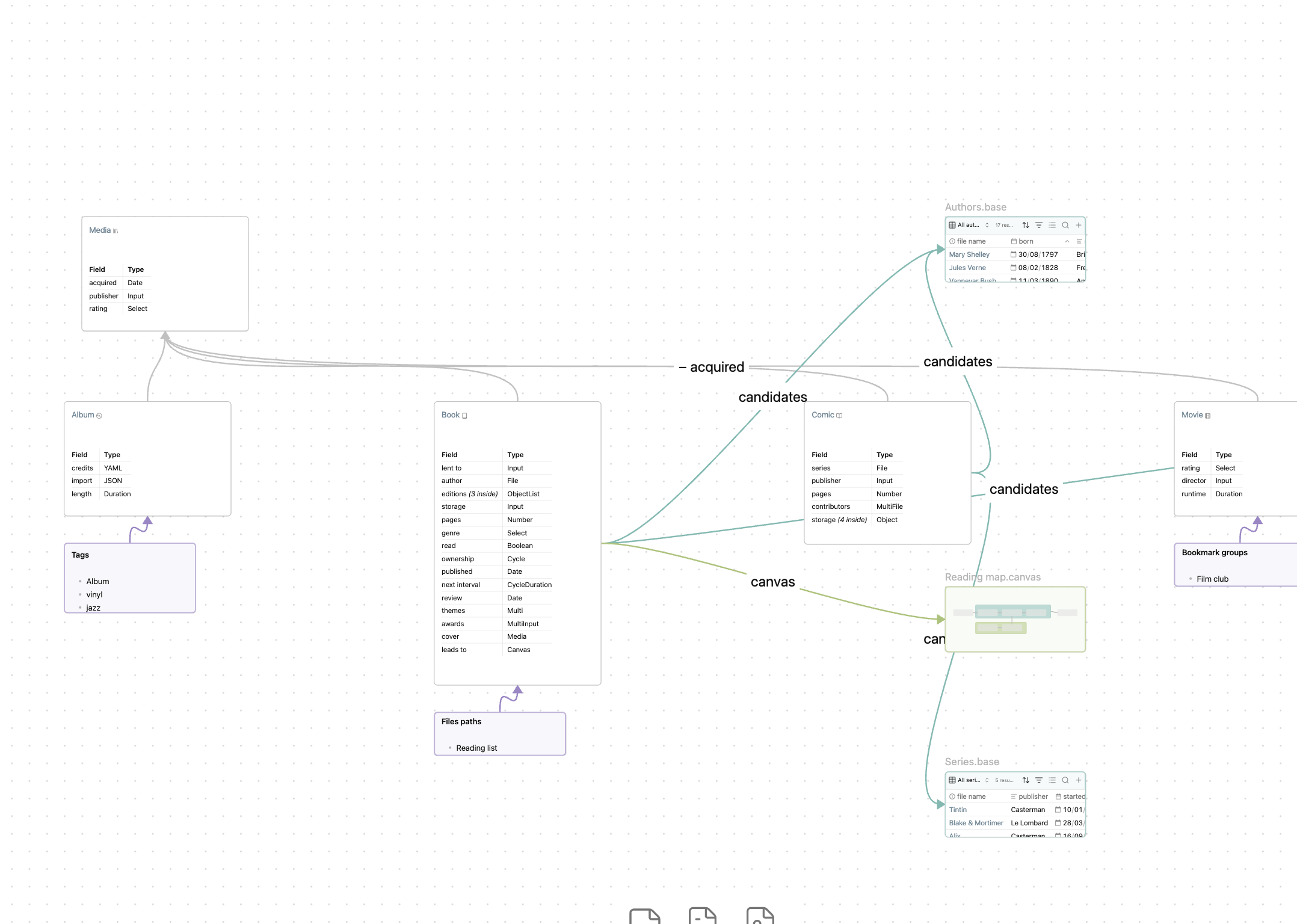
- one node per class, carrying a link to its note and its schema as a table
— every field it declares, with its type, and
(N inside)for anObjectrather than an expansion of it. The link behaves like any link to a class: the icon beside it opens the schema editor. Laid out by inheritance — parents above, families side by side, classes in no chain stacked on the left; - an
extendsedge, labelled with what the child drops (− acquired), capped at three names plus a count; - a
.basefile node per base feeding a field — a real preview of it, so the table you depend on is right there — edgedcandidatesfor aFile/Mediafield andvaluesfor aSelect/Cycle/Multivalues source — the same relation, said twice because it is two mechanisms; - a
.canvasnode per canvas feeding a Canvas field; - a claim card per binding kind, listing what the class claims. A tag that
cannot bind is struck through with the reason — the index skips any tag with a
space in it, so a class named
Media Itemwith Map with tag on claims nothing, and nothing else in Obsidian says so.
The layout is yours
The canvas is generated once and arranged by you. A sync afterwards keeps the geometry of every node it recognises — position, size, colour, a card’s box even as its text is rewritten — adds what is new in a free slot, drops what the classes no longer justify, and never touches a node you added yourself.
It is explicit, like keeping a base in sync and unlike the Canvas engine: a file you have arranged by hand is not one to rewrite unasked. Run the command again and it reports what changed, or tells you the canvas already matches your classes. If the canvas is open, it is written through the open view, so the diagram redraws and there is nothing to close.
Where it lives: Settings → Fileclass → Schema canvas, or
<class folder>/Schema.canvas by default.
Embedding
Watch: A base inside a note Fileclass #036 · 2:24 · recorded with 0.2.10 · on YouTubeEmbed any base in a note the way Obsidian does it — no Fileclass code block is involved:
![[Some.base]]embeds a base file, on its first view;- a
```basecode block holds a base defined inline, in the note itself.
An embedded fileclass-table is the same table as in its own tab: the cells
take the same gestures, the valid column counts and filters, and the wrench in
its toolbar opens the class. A note can hold several, each with its own toolbar.
A dashboard note is then just a note: headings, prose, and the tables the classes already describe.
The other end of a relation
Watch: The other end of a relation Fileclass #036b · 3:05 · recorded with 0.2.11 · on YouTubeBook.author takes its candidates from Authors.base. From a book you reach its
author in one click — and from the author you reach nothing, even though the
schema describes that relation completely. Insert notes that point here, from
the command palette or a note’s right-click menu, closes the loop:
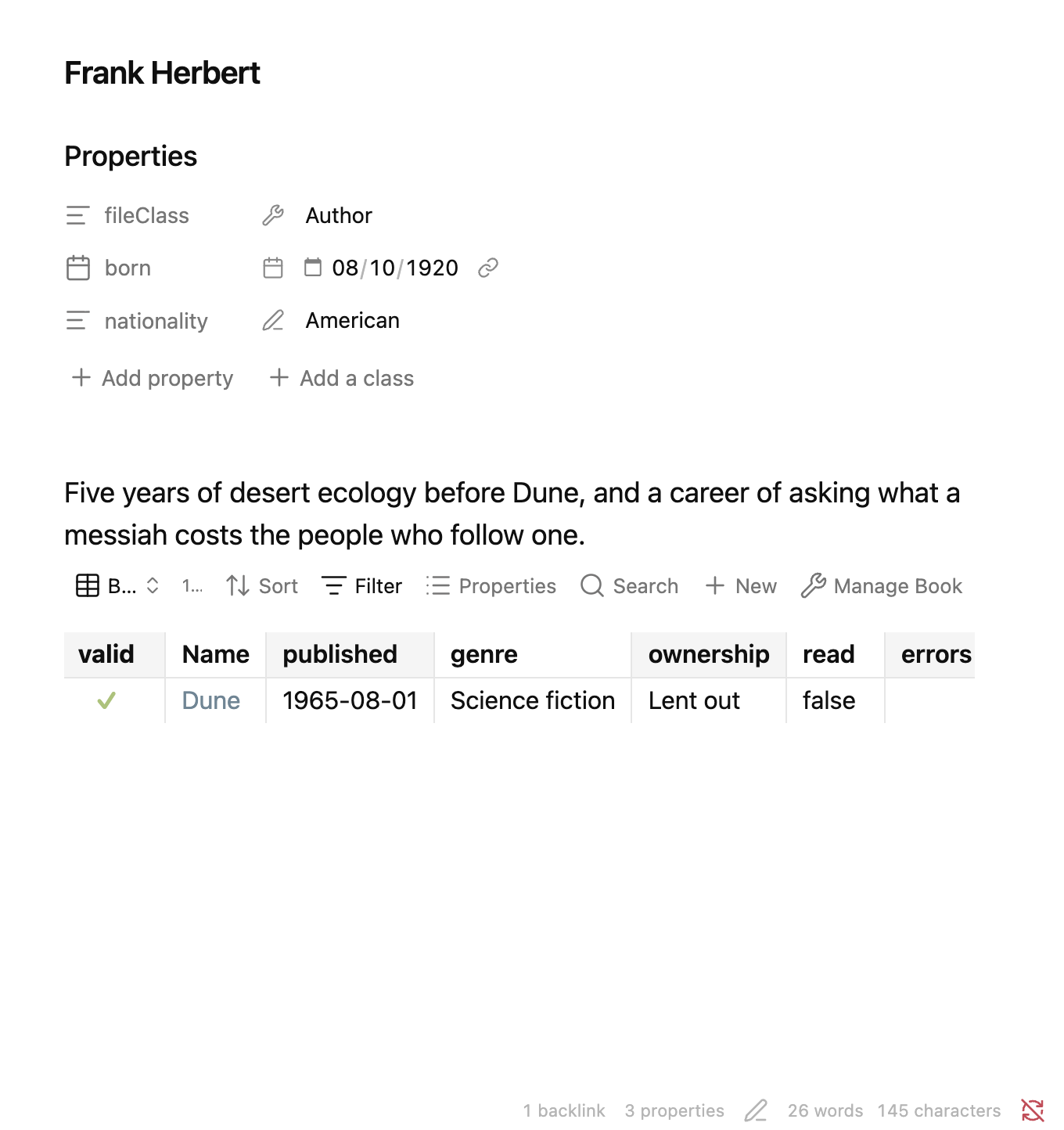
Fileclass writes a view into a base and embeds it. Nothing is evaluated and nothing is stored: the table is Bases answering a filter, live.
One view serves every note
Inside an embedded base, this.file is the note holding the embed, so one view
shows each author their own books. The first author to ask creates it; every author
after that only gets the embed, and a base does not end up with four hundred
near-identical views.
Because the view is shared, it is also yours to keep: run the command again and Fileclass reuses what it finds, with whatever columns, sort and filter you have given it since.
The class says which view, and the name is yours
A class records the view it uses for each of its link fields:
relatedViews:
  - field: author
    view: Books.base#A's Bs
  - field: editor
    view: Dashboards/Reading.base#Edited here
Written the way an embed is (Base#View), so it reads the same in a schema as in a
note. Fileclass creates the entry when it creates the view, and never consults a
view’s name afterwards: rename the view to anything you like and everything keeps
working, because the class points at it rather than describing it.
From the class’s options
Options → Related views lists what the class declares — author → Books › Book by author — with Edit, Remove and Add new. Adding asks for two things: which link
field, and which view, among every view of every base in the vault.
This is the door that closes: until 0.2.14 a declaration could only be made from the view, and removed only by editing the frontmatter by hand.
Nothing there touches a base. A view that does not filter on the note it is read from is named as such under the picker, and left as it is — adding that clause belongs to Use this view for a relation, where you are looking at the view itself.
One field, several views
A relation is often shown more than one way. Task.delegate read backwards can be
Delegate’s ongoing tasks and Delegate’s done tasks, and both are that field read
backwards — so a class declares both:
relatedViews:
  - field: delegate
    view: Tasks.base#Delegate's ongoing tasks
  - field: delegate
    view: Tasks.base#Delegate's done tasks
Each gets what a declared view gets: the New <Class> with <note> button, and a
note created there already pointing back. Declaring the same view twice for one field
does nothing — the pair is what identifies a declaration.
When something has to pick one — inserting a reverse relation into a note — you are asked which of them this note should show.
A view you already have
If your vault predates Fileclass, those views probably exist already — hand-written
filters on this.file, embedded in hundreds of notes under names you chose. Nothing
has to be renamed and no embed has to be touched.
Open the base on that view and run Fileclass: use this view for a relation. It asks
which relation the view shows, changes one word in the base — the view’s type, so
its cells become editable — and writes the relatedViews entry. The name, the columns
and every ![[Base#View]] in your vault stay exactly as they are, and the table gains
in-cell editing, the validation column, the wrench and the New Class with …
button.
Your filter is kept, and read rather than replaced: a view already filtering on
this.file — in any of the forms that work, ==, .asFile(), .linksTo(),
.contains() — is left alone.
If it filters on nothing of the kind, the command says so before writing:
“Every book” does not filter on the note it is read from. Embedded in a note, it would show every row to every note.
and offers to add author == this.file.asLink() beside what is already there. Adopt
without it is a real answer — you may be about to write the clause yourself — and
closing the question writes nothing at all.
You choose where it lives
The first run asks, offering the target class’s own base — Books.base for a
Book by author. Point it anywhere instead: an existing base gets one more view, a new
path is created. Nothing is put in your vault without being named first, and a vault
does not grow a .base per class that happens to be pointed at.
From the second note onwards nothing is asked: the class now declares that view, so Fileclass goes straight to it.
What the filter says
Two clauses: the class’s own scope — property, folders and tags, exactly as in
a managed view — and the relation itself,
author == this.file.asLink(), or contributors.contains(this.file.asLink())
when the field holds several links.
It compares links, not names. So an aliased link ([[Frank Herbert|Herbert]])
still matches, and two authors who share a basename in different folders keep
their own books apart.
The columns come from the class’s own table when it has one — trim your Book table to five columns and the reverse table arrives with the same five, wherever you send it. The pointing field is left out: down this table it holds the host note on every row.
Where the embed goes
At the cursor when the note is open in edit mode, appended at the end otherwise. If an embed of that view is already in the note, Fileclass takes you to it rather than adding a second one, and never rewrites the one that is there.
What it can read backwards
A field qualifies when it holds links (File, MultiFile, Media,
MultiMedia) and draws its candidates from a base view — that binding is what
declares the relation. So:
- a
Selectholding an author’s name is not a relation: nothing resolves it to a file, and no filter over it could survive a rename; - a link field with no base binding accepts any note in the vault, which would make every class a candidate from every note;
- links nested inside an
Objectare out of scope.
Discovery asks each source view whether this note is one of its candidates, which is a scan of the vault per view. It runs only when you invoke the command — never on opening a note — and views shared by several fields are asked once.